You can access the Database Editor fromTools ribbon >Databases>Profile Database Editor
Database Profie Editorenables users to
Create Profile – create an entirely new steel section profile
Create/Edit/Delete/Search Family
Edit/Delete/Search Profile
Convert "I" profile to "T" profile
Create Profile
Use this create an entirely new profile. The steps are as follows :
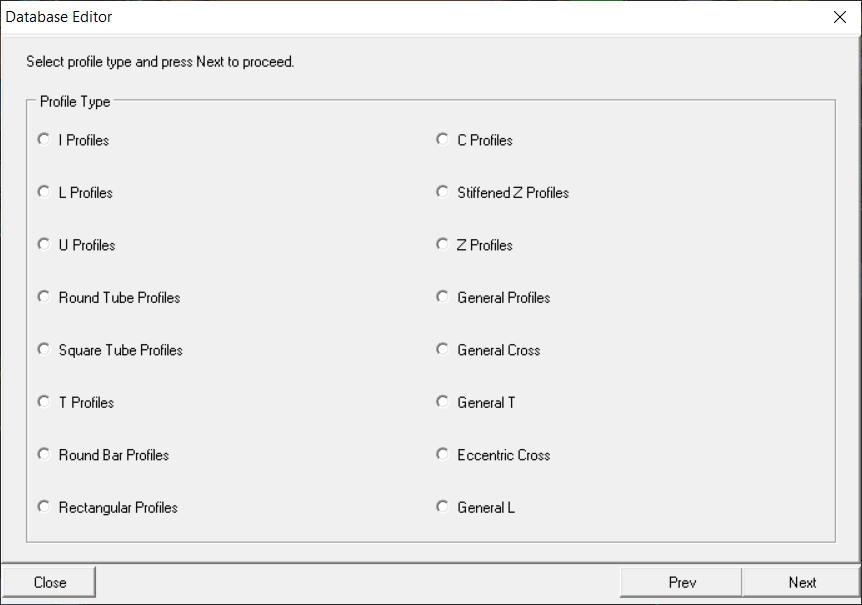
Select Profile Type: chooseProfile Type, i.e. I, C, L profile > Next
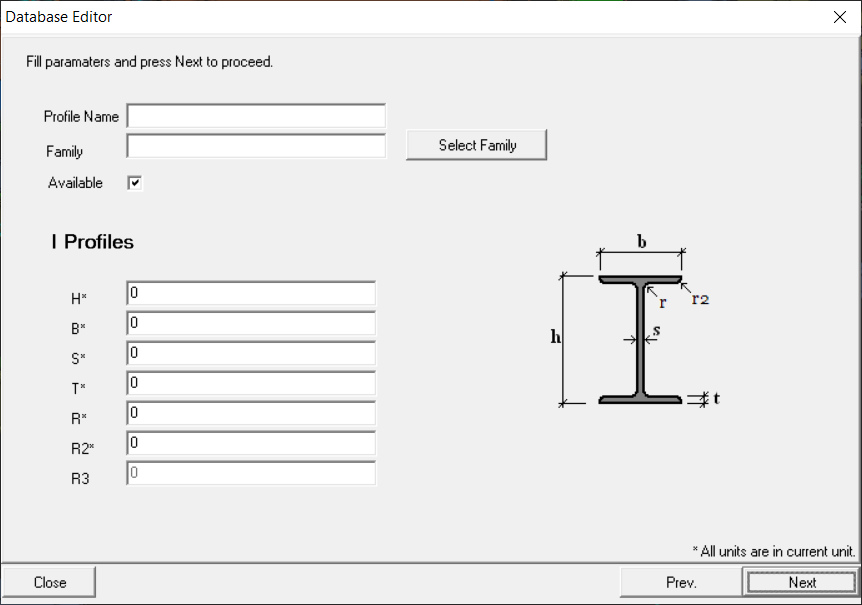
Profile Calculation: Input /Select all the required files
Profile Name : The name of the profile in database.
Family Name: The family name of the profile. Family name can be added/edited via Family Editor (see below)
Available : The availability of the profile on the market.
H: Height of the profile.
B: Flange width of the profile.
S: Web thickness of the profile.
T: Flange thickness of the profile.
Other parameters will depend of the section type
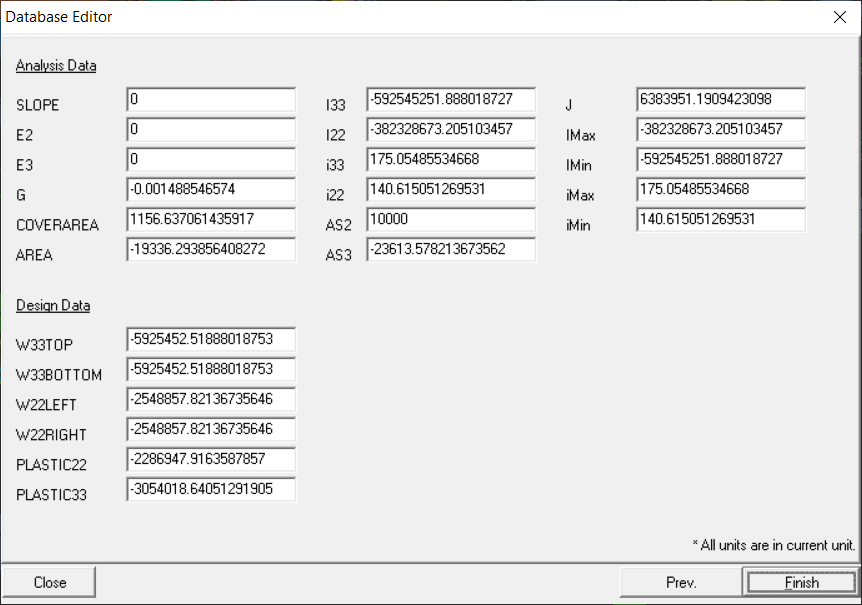
Click "Next"and the section properties will be calculated. These properties can be over-written.
Click"Finish"to complete the process
Family Editor – Create/Edit/Delete/Search Family
Once the user pushes this button (Create/Edit/Delete/Search Family) the following database will be opened:
Here user can view, edit, delete foamily number and name. A family is simply a common group name for a particular section type, e.g. "UPN" & "IPE"
Edit/Delete/Search Profile
This function enable the user to search, view, edit & delete a section profile.
As shown above, the icons are :
Delete Selected Profile: Remove the selected profile.
Edit Selected Profile: You can also double-click on the profile to edit it.
See Details: View the properties of the profile
Create Profile with Select: Create a new section profile with the values of the selected profile. This way is easier & more intuitive as you can decide correctly the profile type & family name.
Export CSV : creates a CSV file of the profile database.
Convert I Profile to T Profile
This function automatically creates "T" profiles from "I" Profile Family. This is basically cutting "I" Sections to become "T" sections.
Select the I profile family which you want to convert to "T"
Select the "T" profile family that the new "T" Section will be added to
Trim Web: To cut "T" profile such that the length approx. equal to the width, B of the original I section
Preletter for new profile : Set a prefix to the new "T" profile name.
Click"Next"and a message prompt will appear > ChooseYES / NOto confirm / reject
We value your privacy
We use cookies to run the site, understand how it is used, and — with your permission — to measure our marketing. You decide which cookies to allow. Read our Privacy & Cookie Policy.
Manage cookie preferences
Strictly NecessaryAlways Active
Required for the website to work — navigation, security, and remembering your privacy choices. These cannot be switched off.
Analytics
Help us understand how visitors use the site so we can improve it. Data is aggregated.
Marketing
Used to measure our advertising and show you more relevant content across websites.



 Create Profile