

Slab Opening Properties
|
|
"Slab Opening Properties" will be loaded when the "Slab Opening" option in the "Modelling" ribbon is selected. A new slab opening can be defined by arranging the fields in the form and then by clicking the insertion reference.
|

Slab Opening Dimensions (b1, b2)
Horizontal ("b1") and vertical ("b2") dimensions of the slab opening can be defined in these fields.

Slab Opening Parameters
Slab Opening Reference Distances (e1, e2)
Slab openings are inserted based on an axis intersection as reference point. The horizontal distance ("e1") and vertical distance ("e2") to the lower left corner of the slab opening can be defined by picking a reference insertion point and pressing “F2” on keyboard. The “e1” and “e2” can be defined as coordinates (x, y) or polar (r<angle) with respect to the selected reference point.
The “e1” reference distance of opening is measured along the direction specified by the “Angle” field. Similarly, “e2” is measured perpendicular to the direction specified by the “Angle” field.
Alternatively, “e1” and “e2” can be defined by simply picking the reference (first point) and the insertion points (second point).
Opening Angle
The "Opening Angle" field allows you to define inclined slab openings. This is the angle of the bottom edge of the opening measured from horizontal axis.
Inserting a New Slab Opening/Drop
The Slab should be created before the Slab Opening is inserted.
To define a new Slab Opening/Drop (Rectangular/Circular)
- Press the “Slab Opening” button located in "Modelling" tab.
- Under type, select "Rectangular" or "Circular".
- Enter the opening dimensions ("b1 " and "b2") and the angle of the opening lower edge with respect to the direction 1 (horizontal) axis. Check "Drop Region Definition" to create a slab drop and input Drop in mm.
- Picking a reference point on plan or 3D views. Insertion point or the distances to the reference point ("e1" and "e2") can be defined by picking the second point on the plan or 3D views. Alternatively, “F2” can also be used to define the "e1" and “e2” after picking the reference point.
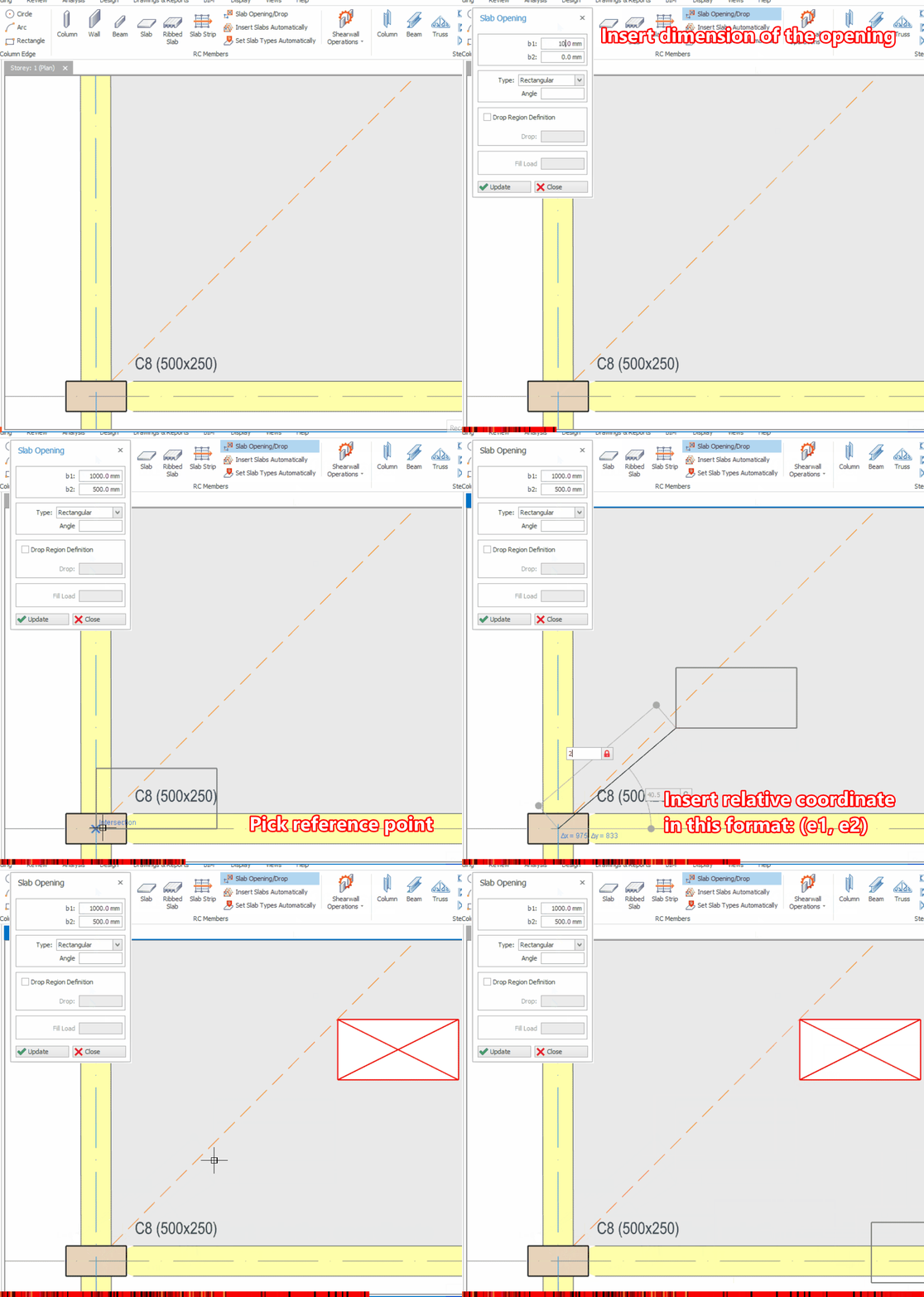

If “F2” is used to define the “e1” and “e2”, the relative coordinates “e1” and “e2” shall be separated by a “ , ” , i.e. the format of the input shall be e1, e2.
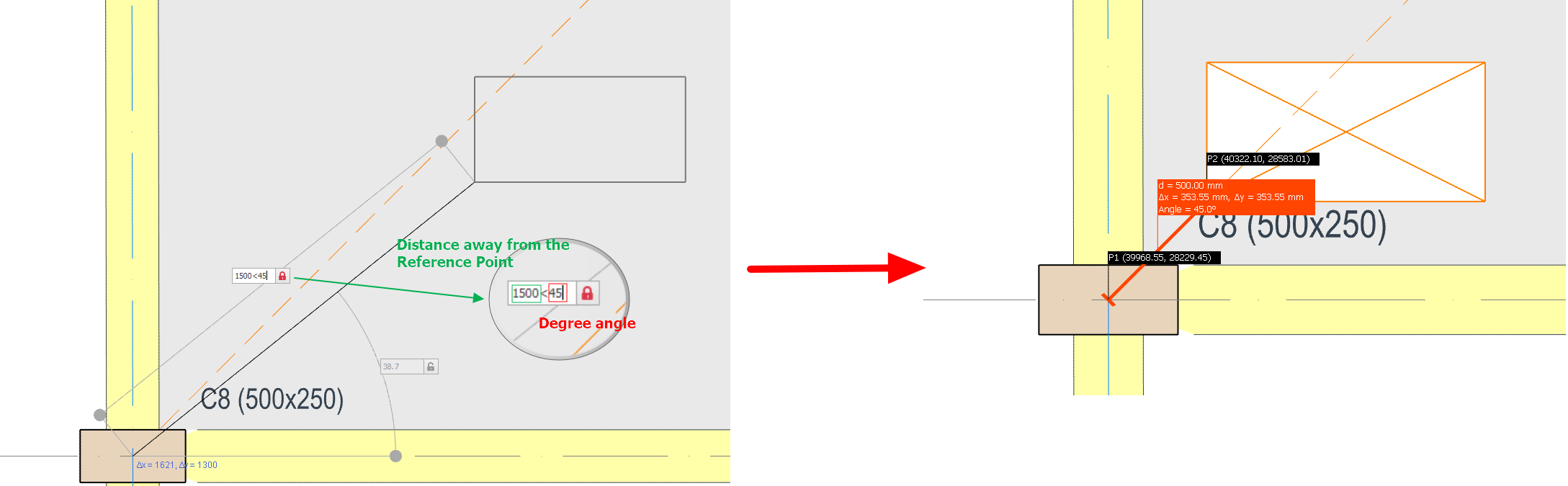
For the polar coordinates, the radius shall be followed by a “ < ” before entering the angle, i.e. the format of the input shall be radius < angle.

For example, if you want to create a slab opening which 1500 mm distance away from the point A and with the angle of 45 degree. The value have to be input into the field is 1500 < 45. (refer to the image below):
To define a new Slab Opening/Drop (Irregular Shape)
- Press the “Slab Opening” button located in the "Modelling" tab.
- Under type, select "Polyline".
- Click successively to define the corners of the drop. Last click to close the loop or right-click select "Close" to close the loop.
- To create drop, check the "Drop Region Definition", input Drop in mm and click "Update".
Negative value is a drop & positive value is a raise. Example:
- If the slab thickness is 150 mm & a -50 mm drop is entered, then the slab thickness at the drop is 100 mm.
- If a positive 50 mm value is entered, the slab will be thickened & raised with final depth of 200 mm.
Editing an Existing Slab Opening
In order to edit an existing Slab Opening:
- Select an existing slab opening.
- Modify the fields such as opening dimensions in the "Slab Opening Properties" form.
- Press the "Update" button in the form.
You can repeat this process to as many members as you wish. One opening at a time can be edited by this method. Opening created using polyline cannot be edited.